


Data Export
MediaShield Pro proUpdated
Pro feature. Available in MediaShield Pro.
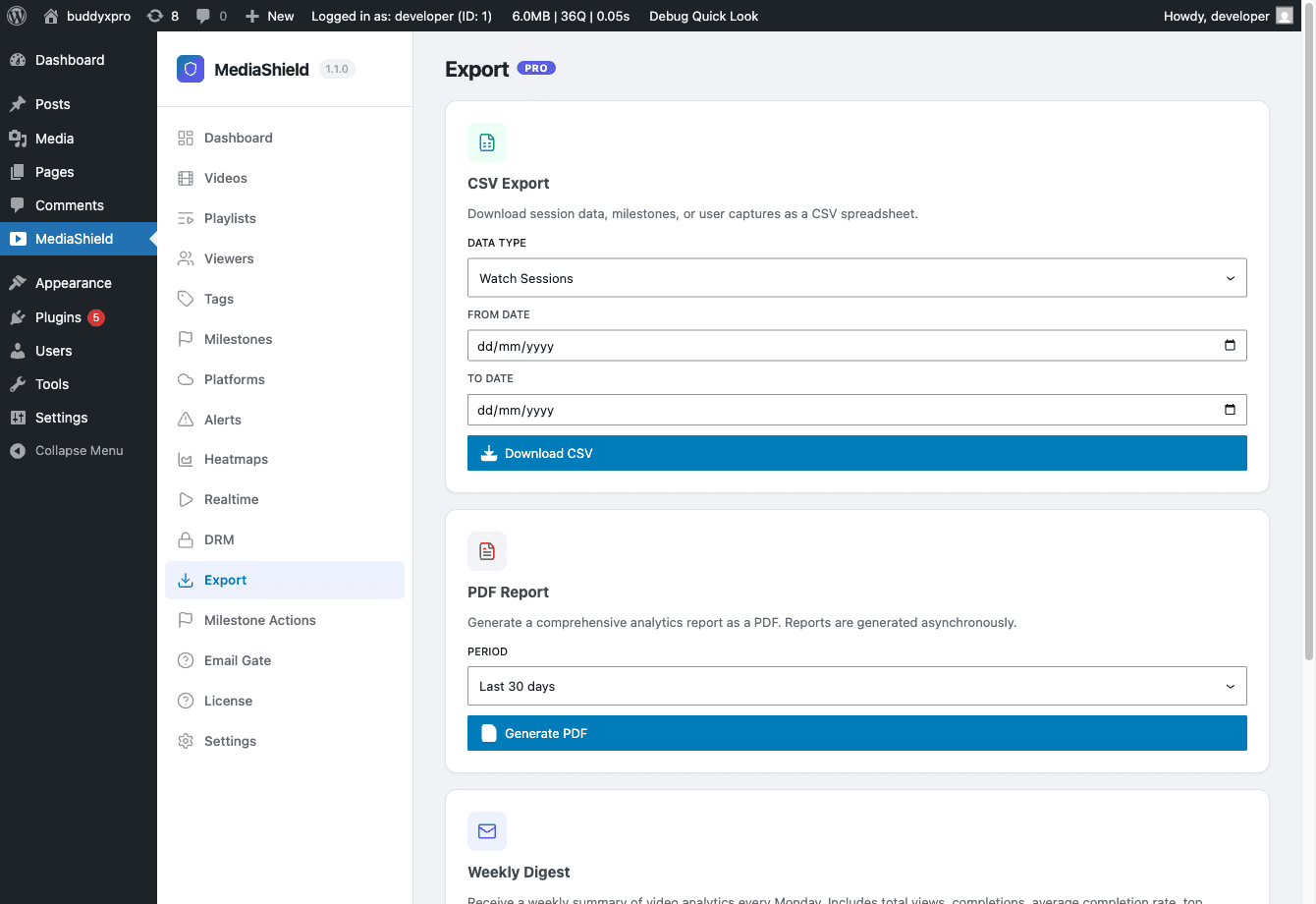 The Export page. Choose a CSV data type, set an optional date range, and download immediately - or generate a PDF report in the background. The Weekly Digest settings live on this page too.
MediaShield Pro provides two export options for your video analytics and viewer data: CSV download and async PDF reports.
CSV Export#
Download watch data as a spreadsheet with date range filtering.
Available export types:
- Watch sessions -- one row per session: ID, video ID, user ID, a truncated session token, IP address, total seconds, furthest position reached, start time, last heartbeat, device type, and browser.
- Milestones -- one row per completion milestone: ID, video ID and title, user ID and name, milestone percentage, and the time it was reached.
- Users (watch stats) -- one row per viewer: user ID, display name, email, total watch time in seconds, session count, unique videos, and milestone count.
How to export:
- Go to MediaShield > Export.
- Choose the data type.
- Optionally set a From and To date. Leave them empty to export everything.
- Click Download CSV.
The CSV file downloads immediately. No cap on watch-session and milestone exports since 1.3.0 - they page through and export in full. The user export keeps a 200,000-row ceiling and writes a NOTE row into the CSV if it is reached, so a truncated file always says so rather than ending silently.
The watch-session and user exports contain personal data (IP addresses, email addresses). Handle the downloaded file accordingly.
PDF Reports#
Generate a comprehensive analytics PDF report.
Report contents:
- Overview stats: unique viewers, total sessions, total watch time, and unique videos.
- Top 10 videos by watch time, with sessions and viewer counts.
- Completion milestones: how many times each milestone percentage was reached.
There is no per-user engagement section and no alerts summary in the PDF. For per-user figures use the Users CSV export; for alerts use the Alerts page.
How to generate:
- Go to MediaShield > Export.
- Choose a period: last 7 days, 30 days, 90 days, or all time.
- Click Generate PDF.
- MediaShield queues the report as a background job. The page polls for it and shows a Download PDF link when it is ready, usually within a few minutes.
- An email with the same link also goes to your site's admin address.
The emailed link is described as valid for 24 hours, and that is how long MediaShield tracks the job. Note that the generated file itself stays in your uploads folder at an unguessable URL after that - it is not deleted automatically. If your reports contain data you would not want reachable by URL, remove old files from wp-content/uploads/mediashield/exports/ periodically.
GDPR and Exports#
All export data is governed by your site's privacy policy. Pro-owned data is wired into WordPress's own GDPR tools - a personal-data export request includes DRM licenses, playback events, upload-queue rows, and milestone completion records, and an erasure request deletes them. No manual queries needed.