

Platform Connections
MediaShield Pro proUpdated
Pro feature. Available in MediaShield Pro.
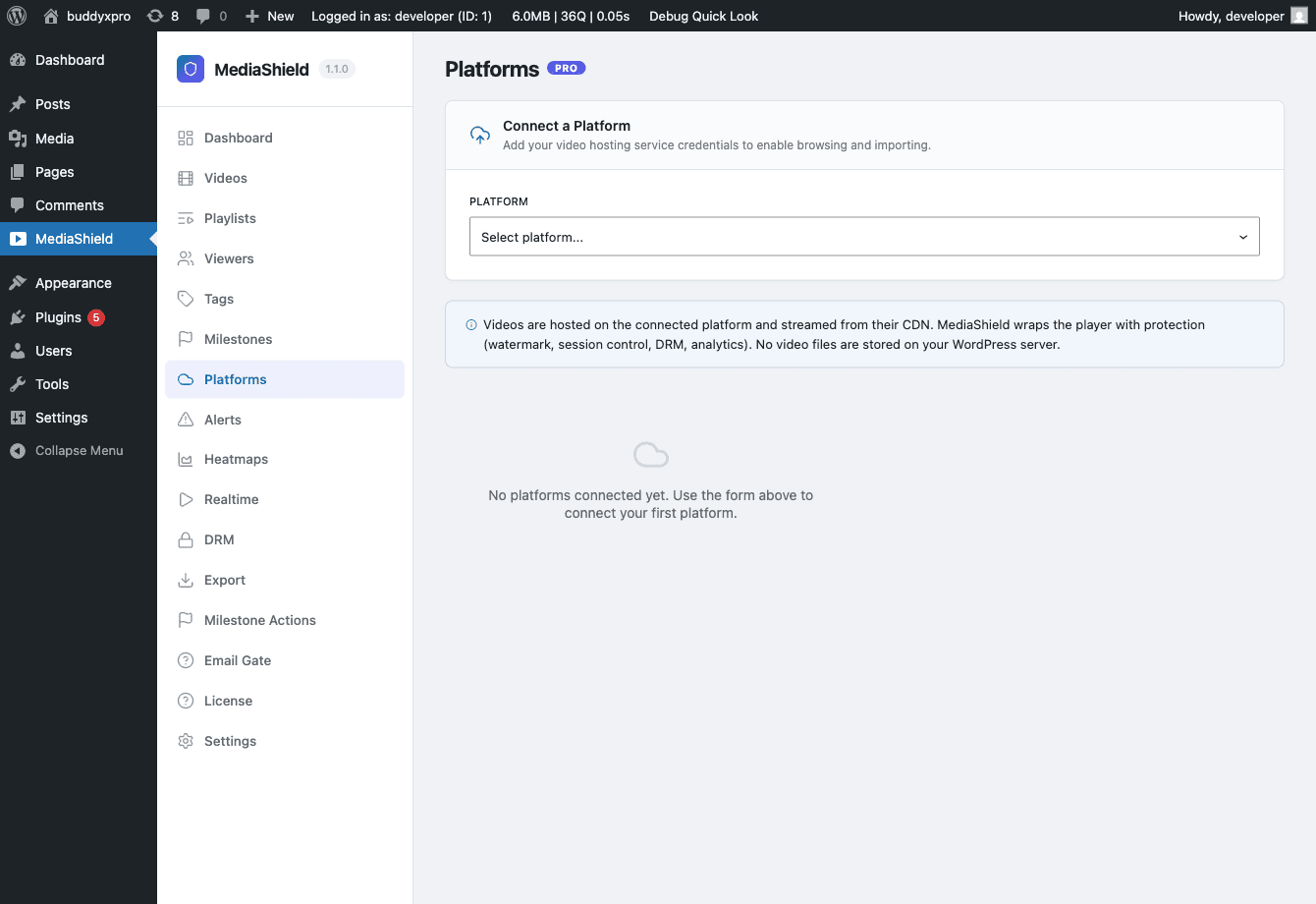 The Platforms page. Use the "Connect a Platform" form to connect Bunny Stream, YouTube, Vimeo, or Wistia. Multiple connections per platform are supported.
Platform connections let you browse and import videos from Bunny Stream, YouTube, Vimeo, and Wistia directly in WordPress.
Supported Platforms#
| Platform | Browse and Import | Upload transfer |
|---|---|---|
| Bunny Stream | Yes | Resumable, 5 MB chunks (tus) |
| Vimeo | Yes | Resumable, 5 MB chunks (tus) |
| YouTube | Yes | Resumable (Data API v3) |
| Wistia | Yes | Single multipart request, not resumable |
Uploading to a platform is API-only in 1.3.0 - see Uploading Videos below. No platform offers DRM through MediaShield; see the DRM section for what the DRM feature does and does not do.
Connecting a Platform#
- Go to MediaShield > Platforms in your admin.
- In the Connect a Platform form, choose the platform.
- Give the connection a name so you can tell it apart from others.
- Enter your API credentials (see below for each platform).
- Click Connect Platform.
Credentials are encrypted with AES-256-CBC before they are stored, using a key derived from your site's SECURE_AUTH_SALT. They are never sent back out: the Platforms screen and the API return the platform name and settings, never the key or secret. Two consequences worth knowing - changing SECURE_AUTH_SALT (for example by regenerating your salts) makes existing stored credentials unreadable and you will need to reconnect, and anyone with database plus wp-config.php access can still decrypt them.
Bunny Stream#
You need your Bunny.net API Key, Library ID, and Pull Zone Hostname, plus optionally a CDN Token Key (required if your Bunny library uses token authentication).
The Pull Zone Hostname is required, not optional - without it MediaShield cannot build a playable URL, so the connection is refused rather than saved in a state where videos import but never play. You can enter just the prefix (for example vz-12345-e25) and MediaShield completes it to vz-12345-e25.b-cdn.net.
The form also shows a ready-made Webhook URL to paste into Bunny Stream > Library > Webhook. It carries a token that authenticates the callback - without it MediaShield rejects the encoding notifications Bunny sends.
YouTube#
You need a YouTube Data API v3 key (Google Cloud Console > APIs > Credentials) and your Channel ID (YouTube Studio > Settings > Channel > Advanced, starts with UC).
Vimeo#
You need a Vimeo API v3 access token (developer.vimeo.com > My Apps > Generate Access Token, scopes: public, private, video_files). The Client Secret field is optional.
Wistia#
You need a Wistia API token (Wistia > Account > API Access, all permissions). The Project ID field is optional.
Multiple Connections#
You can connect multiple libraries from the same platform -- for example, two separate Bunny Stream libraries for different course categories. Each connection is stored independently.
Browsing and Importing#
- Go to MediaShield > Platforms and click Browse & Import on a connected platform.
- Browse videos with thumbnails and metadata. Videos you have already imported are marked so you do not duplicate them.
- Select one or more videos and click Import Selected.
Imported videos appear in your MediaShield video library. MediaShield copies the title across, downloads the platform thumbnail and sets it as the featured image, and stores the streaming URL. Re-importing skips videos already in the library.
Uploading Videos#
Uploading a file from Videos > Add New stores it on your own site (self-hosted). There is no screen in 1.3.0 that lets you pick a connected platform as the upload destination - the "Default upload target" setting under Settings is saved but nothing reads it at upload time.
The platform upload drivers (Bunny, Vimeo, YouTube, Wistia) are fully implemented and reachable from code: post to /wp-json/mediashield/v1/upload/init with driver=bunny, vimeo, youtube, or wistia. Jobs started that way appear on the Upload Queue page, where you can watch them move through pending, uploading, processing, complete, or failed, and filter by status.
If you want videos hosted on Bunny, Vimeo, YouTube, or Wistia today, upload them in that platform's own dashboard and then use Browse and Import above.
Uploading from the Admin#
Upload videos from Videos > Add New in the admin, using the file field beside the Video URL field. Users need the upload_mediashield capability. The file is stored on your site and played through a permission-checked URL, so the file path is never exposed; the size limit is your server's upload limit.
The [mediashield_upload] front-end shortcode was retired in 1.3.0. It never worked - five independent faults, including 404ing assets and a required dropdown with no selectable options - so no site can have been relying on it. The shortcode stays registered so it does not print as raw text on pages that still contain it: visitors see nothing, and editors see a short notice telling them to remove it.